
Production Standards
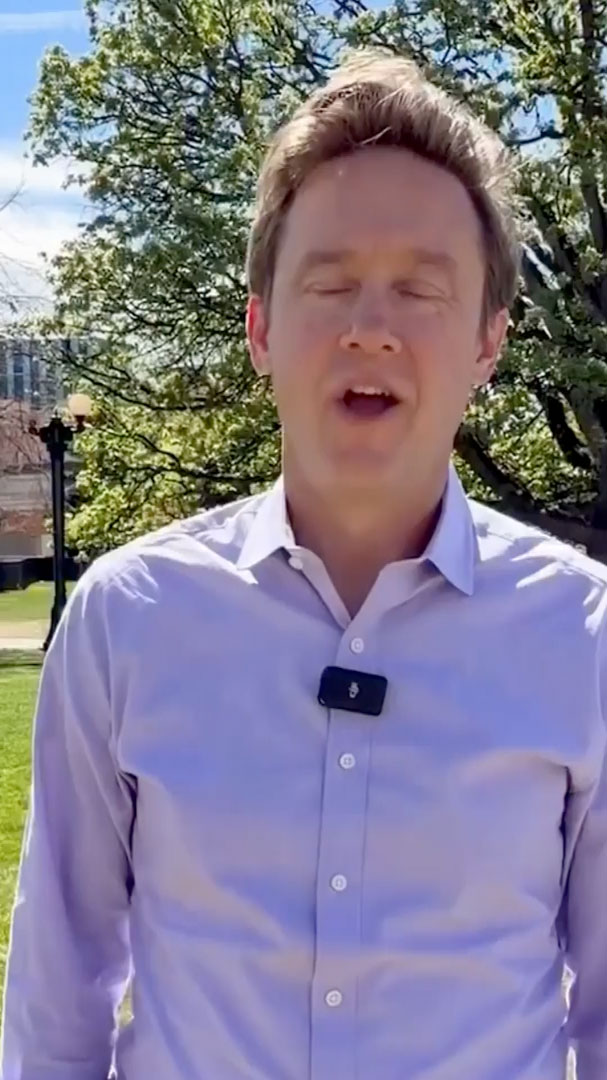
Mayor Mike Johnston
Denver, CO
Having consistent production standards enhances the quality of your content while creating a more efficient workflow for filming and editing. By establishing repeatable best practices for recording, lighting, audio, editing, and on-screen text, you and your team can produce high-quality content that advances your climate messaging and builds engagement with audiences.
Camera Settings & Setup
When recording:
- Record vertically (9:16)
- Use the camera grid to help with framing and spacing
- Leave space at the top of the frame (upper third) for headlines and text on screen
- Leave space at the bottom (lower third) for captions
Framing Standards:
- Position the camera at eye level whenever possible
- Frame yourself from approximately the chest up, leaving enough space for on-screen text without making the subject appear too small
- Keep the background clean and free of unnecessary distractions
- Maintain a consistent filming angle and composition across videos
When possible:
- Record directly through your camera app if you need multiple takes
- Upload into TikTok, Instagram, or CapCut for editing
- If you need a transcript, Instagram’s separate “EDITS” app has one you can use while recording natively in the app
- NOTE: If you use TikTok’s transcript feature in the app, it will notify your audience that you have. This may lead to your audience viewing your content as overly rehearsed.
- Utilize a tripod such as MagSafe tripods, which attach quickly, allow you to reposition easily, and are more flexible than traditional clamp-style tripods
Recording Philosophy
The goal is to capture the strongest performance during recording rather than relying on editing to improve reception later. Natural pauses and conversational delivery often make content feel more authentic and relatable than heavily rehearsed recordings.
Lighting
- Ring lights are a strong starting point and work well for most recording situations
- Key lights are a higher-quality option, especially for people who wear glasses, because they sit above eye level and reduce reflections in the frame
Lighting best practices:
- Face natural light when possible
- Avoid sitting with a bright window or light source behind you
- Make sure your face is clearly visible
- Direct sunlight and overcast outdoors work well for recording
- Natural light can create high-quality content without additional equipment
- When recording, face toward your light source rather than away from it
- “Golden hour” (the time at which the sun casts an orange/yellow hue) can be especially effective for creating strong lighting without a ring light or key light
When on-the-road, the same lighting principles apply:
- When you have access to good natural light, you may not need additional equipment
- Avoid recording directly into the sun and position yourself so the available light is working in your favor
- Even without equipment, adjusting your position toward the best available light source can significantly improve video quality
Audio
- Clip-on microphones are an affordable starting point and can immediately improve audio quality
- Higher-quality wireless microphones can help reduce background noise, connect easily to phones, and create cleaner audio, especially when recording outside or at events
- Small changes in clothing, movement, or placement can impact audio quality
Audio best practices:
- Test audio for quality by recording yourself for 10–20 seconds and listening back before filming a full video
- Reduce background noise
- Use a microphone when possible, especially when recording on the road
Many of the conversations that shape online narratives begin with a short video clip that is then shared, reacted to, and repurposed across platforms. By selecting, framing, and sharing clips, you can respond to viral videos using your direct commentary and position yourself as a reliable and authoritative voice within the national conversation.
Clips can be incorporated into content in several ways, including:
- Opening a video with a clip before transitioning into commentary
- Beginning with a brief hook before showing a clip
- Integrating clips throughout a longer explainer or analysis video
When using clips:
- Ensure clips provide context rather than replace your own analysis
- Prioritize clips that emphasize the point you are making
- Keep clips concise to maintain viewer attention and maximize time for your own commentary
- Verify that downloaded footage maintains sufficient quality
Downloading Clips:
Several tools can simplify downloading publicly available clips for commentary content, including:
- Cobalt.tools
- YouTube download services
- Browser extensions for downloading videos from social platforms
Editing Best Practices
- Trim unnecessary pauses at the beginning and end of each recording
- Remove long pauses and filler sections to maintain pacing
- Avoid elaborate transitions
- Limit transitions, animations, and visual effects to situations where they improve clarity
- Generate captions and review punctuation before publishing
- Export at the highest available quality
- Avoid exporting with platform watermarks before cross-posting (i.e. posting a video from TikTok to Instagram should NOT have the TikTok logo)
CapCut
CapCut is recommended as the primary editing software for short-form content and provides all of the core tools needed for an efficient editing workflow.
Recommended workflow:
- Import footage
- Trim pauses at the beginning and end using the Razor Tool (⌘ + B on desktop)
- Remove unnecessary pauses throughout the recording
- Add your headline or hook as on-screen text that remains visible throughout the video
- Can also only add to the first 5-10 seconds of the video
- Generate automatic captions
- Review captions for punctuation and transcription accuracy
- Export in the highest available quality
Additional recommendations:
- Use the desktop version whenever possible, as it is generally more reliable for editing and caption generation
- If you do not have CapCut Pro, TikTok’s built-in caption tool is a strong free alternative
- Maintain consistent fonts, colors, and text placement across all videos
- Always export videos without watermarks before posting to multiple platforms
OpusClip
OpusClip is designed to convert long-form recordings, including podcasts, webinars, interviews, Zoom meetings, and livestreams, into short-form social media clips.
Key features include:
- Automatic clip generation from long-form video
- Autogenerated captions
- Viral score rankings that predict clip performance
- Timestamp selection to analyze only selected portions of a video and conserve credits
OpusClip provides an efficient starting point, but still be sure to review its clip selections. Always evaluate suggested clips using your own judgment and adjust timing, captions, and framing before publishing.
Canva
Canva offers a variety of built-in features that can speed up editing and improve the overall quality of your videos. Use these tools to enhance your message while keeping the focus on the speaker.
- Canva Pro unlocks premium features including higher quality exporting, background remover, stock footage, background music, Brand Kits, Magic Resize, and additional templates and design elements
- Use Canva Pro’s stock footage library to add royalty-free B-roll when original footage isn’t available
- Browse Canva’s royalty-free audio library for subtle background music that complements your video
- Save logos, fonts, and brand colors in a Brand Kit to maintain consistency across videos
- Duplicate existing templates instead of starting from scratch to save time
- Use simple icons, shapes, and graphics to reinforce key messages visually
- Use Magic Resize (Canva Pro) to quickly adapt videos between 9:16 and 16:9 formats or across platforms
- Organize footage, graphics, and templates into folders for easier collaboration
- Preview the full video before exporting to catch timing, caption, or formatting issues
Export as an MP4 in the highest available resolution for the best video quality
Text On Screen
Your Text on Screen (TOS) should serve as the headline for your video. It should provide context, reinforce your message, and clearly communicate the central theme of the content.
Best practices:
- Position TOS within the upper third of the video frame when possible
- Avoid covering your face / anything relevant with TOS
- Keep TOS to about 4 lines to avoid unnecessary length
- Maintain sufficient spacing around the edges of the screen to account for platform interface elements
Captions
Captions improve accessibility and increase viewer retention.
Best practices:
- Include captions whenever possible
- Review automatically generated captions for spelling, punctuation, and accuracy before publishing
- Keep captions in the lower third of the frame without interfering with platform buttons
- Maintain consistent font, size, color, and placement across all videos
DO:
- Record vertically (9:16)
- Record or export in 1080p or higher whenever possible
- Position the camera at eye level
- Leave space in the upper third for Text on Screen (TOS)
- Leave space in the lower third for captions
- Use a tripod or other stabilizing device
- Face your primary light source or natural light
- Test your audio before recording
- Use an external microphone whenever possible
- Keep backgrounds clean and free of distractions
- Trim unnecessary pauses to maintain pacing
- Use jump cuts to keep videos engaging
- Add Text on Screen (TOS) to clearly communicate the video’s main message
- Include captions on every video whenever possible
- Maintain consistent fonts, colors, and text placement across videos
- Export videos at the highest quality
- Download videos without watermarks before cross-posting
- Use AI editing tools, such as OpusClip, as a starting point and apply editorial judgment before publishing
DON’T:
- Record horizontally for short-form platforms
- Position bright windows or light sources behind you
- Film in dark or poorly lit environments when avoidable
- Rely solely on your phone’s built-in microphone in noisy environments
- Use handheld footage unless movement adds value to the content
- Over-edit with excessive transitions, animations, or visual effects
- Add unnecessary sound effects or motion graphics
- Let Text on Screen (TOS) cover your face or important visuals
- Use multiple fonts, colors, or text styles across videos
- Publish videos with platform watermarks
- Spend excessive time perfecting one video at the expense of posting consistently
- Sacrifice authenticity for overly planned production